Barcodes seem simple enough: scan them and everything magically works. But there’s quite a bit happening behind the scenes after you scan, and inside those mysterious black lines. The lines of a barcode conceal data. When you scan a barcode with your scanner it is translating those lines into the underlying product data. If those lines happen to contain unexpected data, it can cause problems when used within an application that has an expectation for what data should be coming in.
There are standards for this data in the medical materials space, but they have evolved over time and some vendors have not yet caught up. Most larger vendors all standardize the data hidden in the barcode – or QR code – and that makes our life, and yours, that much simpler. There are some outliers, and even some old items from larger vendors that will inevitably be on your shelves, or show up in a box. Some vendors still use the prior standard, known as HIBC. These barcodes start with a + sign, which is visible directly under the barcode. AMSHub is able to identify these barcodes, but these old barcodes don’t include lot number and expiration date information, so you will need to manually enter this information on the Delivery page and when you scan them out into a procedure, AMSHub will prompt you to select the correct lot number from what’s in inventory.
You may scan the barcode and nothing happens as expected.
Here’s an example of the current standard for barcode data (note the height and width can change):

Here’s an example of the same data stored in a QR code:

The numbers and or letters visible under the barcode are not some mysterious secret code. They translate to very simple, yet important, information you use everyday. First, understand that you can ignore the values in parenthesis. These simply separate the three pieces of important information included in the barcode. The first separator (01) says the item number (GTIN) is coming. If you look at a product you have and compare it to the information about the item in AMSHub, you’ll see the item number matches exactly what’s on the packaging between the (01) and (17): 12345678901234. Simple, right? The next piece of data is simply the item expiration date formatted as YYMMDD. In the example above the expiration date is May 31, 2019 (190531). Last is the item’s Lot Number, which in this example is 123456. Again, this information, and all of the information in the barcode, is generally visible right on the package in other locations, but is repeated in the barcode so that a single scan can provide systems all the information they need about the product.
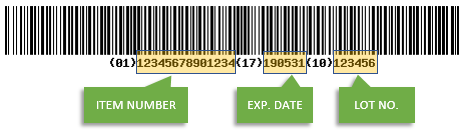
If you scan an item that doesn’t match in the system, take a look at the data below the barcode. If you don’t recognize it looking very much like the example above, it is likely a non-standardized barcode.
So what do you do when you have a barcode with no standardized data? The short answer: it depends. Is there a QR code? If so, scan that and see if you have any success. In some instances there may be two barcodes between which all of the data is available, but unfortunately broken into two pieces. The first barcode usually contains the item number, so you’ll recognize the (01) followed by fourteen numbers. The barcode below it might contain the expiration date and lot number. Or it might not. This is when things get interesting.
For vendors that use the two barcode system, this can often work correctly to capture the data. AMS can recognize this case and when you scan the first barcode, AMS will ask you to scan the next barcode. In this case, you would scan the barcode typically beneath the one previously scanned, and AMS will try and get the necessary data from it. Hopefully, that will work. If not, what happens next?
Our recommendation in these instances is generally to print QR codes to label the packaging of these items to simplify their use in the future. Find out more about printing QR codes here. By doing this, you are standardizing these non-standard items to align with the vast majority of your other inventory.
Item Barcodes vs Box Barcodes
If an item is generally delivered in a box containing multiple instances of that item, the containing box may have a unique barcode. In this case, please read our page to help you understand items in boxes.
No Barcode or Non-Standard Barcode
Some items may not have a barcode, or the barcode may not follow the industry standards. In this case you will have to handle this item manually. When adding the item to your inventory, you can enter the item reference number in the search box or search the Global Catalog and filter by Vendor or Category to add this item to your inventory. To add the item to a procedure you can search using the item reference number, then select the item from the list with the lot and expiration that matches your item used, if you have multiple items. You will click the red+ next to the item you want added to the procedure.