All items added to AMSHub should enter the system via the Order and Delivery processes. Whether your facility is using our Online Ordering feature, submitting Orders to vendors manually, or using our Manual Order option, the origin of every item in your inventory should begin with an Order. Below is an example of the ordering process:
You can begin the order process in a few ways: from your alerts notification link, Clicking the New button from the Order Summary tile on the Dashboard, or by going directly to the Orders area and clicking the +Add Order button. We’ll look at two of these options in more detail:
Starting an Order From the Alert Notification
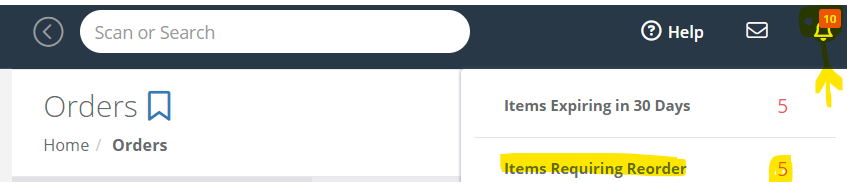
In the illustration above there are five items that have triggered automatic reorder rules based on par levels, so these five items will be automatically added to a new order. In some cases, items are sold in a box of multiple items. The orders page will automatically calculate what you need to order based on the information we have about the box these items are delivered in. Therefore, the order quantity will be increased to meet the minimum order amount based on the box quantity. Understand more about items in boxes.
When you are preparing your order, you may notice that an item continues to pop up as an item that needs to be reordered based on the par levels that have been set. You may need to adjust the par levels to more accurately reflect the proper reorder point. We have the ability for you to adjust the par levels right from the reorder screen. When you are preparing your order and you see an item that needs its par levels modified, click on its GTIN. This will open the toggle panel at the bottom of your screen and allow you to modify par levels and active/inactive status. Once you have made your change and saved, the order you’re working on will reload based on those changes to ensure your new par levels are used to build the order. These changed will be saved and used going forward.
Start a New Order on the Orders Page

When you go to your Orders page, you’ll see the +Add Order button as shown above. This will take you to the Order page and show you any items pending reorder based on your par levels, or allow you to add new items. You can edit any items automatically added to a new order by changing the order quantity, or delete them from the order. You can add new items to the order by typing some characters from the item number into the “scan or enter item number” box, or scanning the barcode of an item, which will automatically add the full item details to the order..
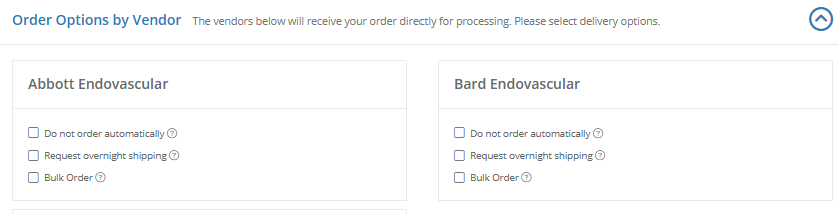
Once you’ve reviewed/entered all items to be included in the order, selecting Next will allow you to do a final check of your ordered items before it is created. If you have automated ordering turned on, you will see an Order Options by Vendor panel. Expanding this panel will allow you to exclude vendors from the automated order delivery, as well as adding a request for overnight shipping to the order. For facilities with automated ordering enabled, as soon as an order is finally submitted, we immediately send the order details directly to the vendor for fulfillment. For all facilities, you will also have the option to set vendor orders as a Bulk Order. (Learn more about Bulk Orders) If you are going to manually order items from a vendor, or are creating an order for an item that is being provided via some other channel, checking “Do not order automatically” will prevent the system from sending a request to the vendor for their items. You will see a note on this order indicating the items for that vendor were not ordered.
Once you’ve reviewed your order and made any necessary changes, selecting Submit Order will send your order to all of the necessary vendors (if you have automated ordering enabled for your facility), or will save it in the system if you don’t.
If you’re a facility that does not use our online ordering feature you can delete existing orders, assuming no items have been received.
More to Know About Orders
Optional Order Workflow Feature
If your facility requires an approval process for order placement, we offer an order workflow feature where orders can be created in a Pending Approval state where another user can then review and submit. To learn more, visit the Order Workflow page.
Optional Online Ordering Feature
Save hours of time each day by letting AMSHub send your orders directly to Vendors. Once your order is ready, you can make a few button clicks and AMSHub will send your order details to all Vendors in your order with all of the details needed for them to fulfill your order immediately. Learn more about Online Ordering.
Creating A Manual Order
If you have items in-hand that were provided by a vendor without having been received via an order already placed in AMSHub, you can easily add them into the system using our Manual Order feature. Learn more about using Manual Ordering.
Multiple Users Creating Orders
If you have multiple AMSHub users tasked with placing Orders, a number of features exist to facilitate this process. When a user begins an order, the item(s) in that order become visible only to them. Other users can create orders at the same time, but will not be able to see the items in the first user’s order, until the first user has removed those items from their pending order or completed their order. Each user’s new order progress will be auto-saved should they not complete their order during their current session. When they return any time that day their cart will still be there with their latest changes. Other users will not be able to order any of the items in that saved cart during this time. The saved order stays until completed by the creating user or if left incomplete will expire at midnight. If you start an order and return later that day, you’ll see a message that the order changes have been auto-saved and you can pick up where you left off. Again, this feature is only available to the person that created the order. You can also use the Reset Order button to remove the changes and return the order to just the system-generated list based on your par levels.
If you are trying to order items that another user is already adding to an order, you will get a message letting you know that the item(s) you are trying to order are in another user’s cart and are unable to be ordered.